Your phone buzzing mid-thought can disrupt your flow, making it hard to get back on track. Everyone who wants to manage notifications for focus can relate to this daily interruption.
Distractions can add up, especially when notifications compete for your attention all day. Real productivity depends a lot on how you decide to manage notifications and streamline your digital experience.
This article shares practical steps to manage notifications while reclaiming your day. Explore these actionable tips and see which methods fit your habits best.
Begin by Filtering Essential from Non-Essential Alerts
You can regain control over your attention by deciding what really requires a notification. Start by reviewing all notifications and separate urgent from routine updates.
Setting up rules for which apps can alert you is a fast way to manage notifications every day. Let’s dive into details and walk through a sample approach for lasting clarity.
Deciding What Requires Immediate Attention
People usually want instant alerts for messages from family or work. A good indicator: if you’d say, “I need to see that right away,” make it a priority notification.
Review your contacts or apps, tagging important ones. For instance, choose your boss or partner for calls and messages, but not every group chat.
This simple filter lets you respond faster when it matters and lets less urgent notifications wait. Practicing it regularly helps everyone manage notifications mindfully.
Silencing the Noise: Temporary and Permanent Muting
Use “mute” or “do not disturb” wisely. Mute group chats during work, and pause social apps while reading. The right combination lets you focus fully on your priorities.
If a certain app rarely sends anything helpful, turn off alerts altogether. With fewer interruptions, you’ll feel a calmer, more productive pace each day.
Commit to muting at set times. By adding silent rules, you create breathing room in your routine and actively manage notifications instead of letting them control you.
| App Type | Urgency | Recommended Action | Tip |
|---|---|---|---|
| Low/Medium | Batch-check 2x daily | Add to summary, not instant | |
| Banking | High for fraud alerts | Allow security, mute promos | Set custom filter |
| Social Media | Low | Mute or summarize | Review during breaks |
| Work Messaging | High (essential contacts) | Allow select teammates | Pin priority chats |
| News | Low | Turn off breaking alerts | Schedule a news check-in |
Establish Notification Schedules to Protect Focus Time
Blocking specific times for notifications keeps you in the flow during deep work or unwinding. Scheduling alerts helps manage notifications without constant glancing at your phone.
Creating a consistent routine trains both your apps and your brain to expect less interruption. Start with focused blocks and adjust as your days evolve.
Setting Time Blocks with Clear Boundaries
Reserve hours for uninterrupted work, study, or sleep by limiting alerts to a few trusted senders. Tell contacts, “I’ll check messages at noon,” then silence the rest.
Tools like bedtime and work mode silence all but emergency notifications. Checking less means returning to tasks with fewer breaks and deeper concentration.
- Set Do Not Disturb from 9pm to 7am to protect sleep hygiene—keep only emergency contacts active for accountability and wellbeing.
- Batch notifications so your phone delivers non-urgent updates at 10am, 2pm, and 6pm—review everything at once without scattering your focus.
- Communicate your notification policies to colleagues—say “I’ll check email at two scheduled times daily,” so others know how to reach you if urgent.
- Use app-specific schedules: Social apps muted during work hours, calendar alerts allowed 10 minutes before meetings only—customize so every ping serves a purpose.
- Review and tweak these blocks monthly. If you’re still getting distracted, fine-tune the schedule further to match real needs and recurring habits.
Applying these steps helps to manage notifications proactively. For best results, make it a habit to review and update your schedule monthly.
Building a Weekly Review Habit
Set a recurring reminder for Sunday evenings to scan notification settings. Quickly check which apps over-notified last week and silence non-urgent options.
Doing this weekly reduces buildup and keeps your system simple. Less clutter means any one alert truly has value, and your control becomes second nature.
- Delete or mute apps that sent more than three unhelpful alerts last week—this keeps your home screen tidy and reduces attention-stealing clutter.
- Prioritize reminders only for tasks due the next day—prevents being overwhelmed by long-term to-do lists and brings clarity to tomorrow’s schedule.
- Limit real-time alerts to one news app to avoid duplicate headlines—choose the most reliable source and stick with it for better focus.
- Pin critical threads in your messaging app so they’re easy to check during batch reviews—no need to scroll past old topics or noisy groups.
- Group non-essential updates under a ‘summary’—ditch instant pings for shop discounts, game lives, or social invites, keeping urgent only in your main feed.
This review habit lets you manage notifications by keeping unwanted alerts in check, week after week, with only a few taps.
Customizing Alerts to Match Your Real Workflow
Adjusting notification tones, vibrations, or visuals is like tuning an instrument. You can manage notifications to highlight what’s urgent and mute what disrupts your routine.
Color labels or unique ringtones quickly help you spot urgent apps among background messages. Let’s explore how subtle customizations make a huge difference in your daily flow.
Visual and Sound Cues for Sorting Priorities
Assigning a bright color or sharp sound to calendar alerts makes it instantly clear they’re important. Use a default tone for casual updates to avoid confusion.
Try assigning a soft vibration pattern to less urgent apps. Tactile differences help you unconsciously sort notifications when you’re multi-tasking or out in noisy places.
Fast recognition lets you respond or ignore in a second, making it easier to manage notifications for focus without overthinking each ping.
Grouping and Stacking: Smart Organization in Action
Combine notifications from the same app into groups—for example, all work chat updates appear as one banner. It’s like putting similar mail in the same folder.
Stacked notifications make reviews faster, and prevent your screen from filling up with unrelated alerts. Your phone becomes less overwhelming at a glance.
This method saves swiping time and creates clarity. The trick is to choose apps where grouping matters most—email, work chats, or calendar updates always benefit from this rule.
Leveraging Device Features For Smarter Notification Control
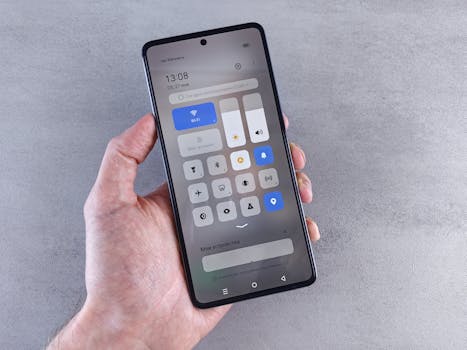
Modern devices have modes and shortcuts that help you manage notifications without diving deep into menus. Take full advantage of these built-in options for immediate results.
Features like Focus, Work, or Game mode instantly apply notification rules you set. Tap once to shift alerts on or off based on your current activity.
Making the Most of Quiet and Priority Modes
Use quiet mode when presenting or sleeping so only alarms break through. Touch priority mode at work so only high-value notifications appear while you’re deep in tasks.
You can switch modes without missing anything crucial. Build the habit of toggling modes in specific moments: before meetings, meals, or creative sprints, for example.
This approach means you’re never surprised by unexpected alerts when you need silence, yet you stay accessible for genuine emergencies.
Automation Tools for Scheduled Adjustments
Automation lets your device manage notifications without constant micromanagement. For instance, automate bedtime silencing, or set work apps to mute on weekends automatically.
Use location triggers to silence alerts at the gym or library, making your environment distraction-free without extra steps. Small automations add up to calmer days.
Making notifications adapt to your habits reduces your mental load—there’s less to remember and more space to focus on what’s important at each moment.
Review and Reduce App Permissions for Less Noise
App permissions drive a surprising number of alerts. Reviewing what each app can access helps you manage notifications at the source and cut back on distractions before they happen.
Disabling location, background activity, or marketing consents for non-essential apps means fewer pings and more privacy. Take a monthly inventory to trim things back as your needs shift.
Trimming Down Notification Channels
Explore app settings for individual notification channels—most messaging or shopping apps let you turn off specific banners, badges, or promotional offers without losing useful info.
If you find background notifications unnecessary, disable them for games or entertainment apps. This makes it far easier to stay focused and engaged on the essentials.
Only keep what actively helps you stay productive, connected, or safe. This targeted pruning is key to an effective manage notifications strategy.
Privacy as a Focus Tool
Reducing permissions is also great for privacy. Say “No” to microphone or camera access unless an app absolutely needs it. You’ll see fewer pop-ups instantly.
Block unnecessary contacts or calendar syncing for third-party apps. Not only do you shrink your digital footprint, but you also simplify the flow of updates you receive.
This extra step means every notification on your device supports your goals rather than distracting from them.
Building a Sustainable, Distraction-Free Digital Routine
Any effort to manage notifications is most effective when it becomes a daily routine, not just a one-time fix. Small, regular tweaks keep distractions from sneaking back in.
Think of your notification settings like a garden that needs occasional pruning. Over time, careful tending results in a thriving, calm digital life. Revisit your setup regularly to ensure it stays useful and balanced.
Staying Consistent: Making Notification Management a Lasting Habit
Developing the habit to regularly manage notifications keeps distractions at bay. Check your settings biweekly and review what’s getting through versus what matters most.
Celebrate small wins—like a distraction-free afternoon or more restful sleep. Specific steps like batch reviews or mode switching make the habit stick with minimal effort.
Managing notifications can increase both productivity and peace of mind. When you control your digital environment, your focus and well-being steadily improve. Start with one tip today for a calmer tomorrow.